> For the complete documentation index, see [llms.txt](https://help.palmstreet.app/llms.txt). Markdown versions of documentation pages are available by appending `.md` to page URLs; this page is available as [Markdown](https://help.palmstreet.app/buyer/payment-management/how-to-connect-and-update-your-payment-card.md).
# How to connect and update your payment card
Encountering issues with binding, changing, or deleting your bank card? This article offers a one-stop solution to help you easily manage your bank card information, ensuring a worry-free shopping experience.
### First Time Link Your Payment Card
After entering any of the live shows, click the wallet icon to go to the shipping and payment information page. Fill in the card information by tapping the Payment detail and then click "Add" to connect the card to your account.

### Binding a New Card to your account
When you navigate to your payment card info in the live show, click the card icon with circular arrows to add a new card.

### Switching Between Cards for Payment
Click the card icon with circular arrows and choose the card you prefer as default.

### Deleting a Linked Card
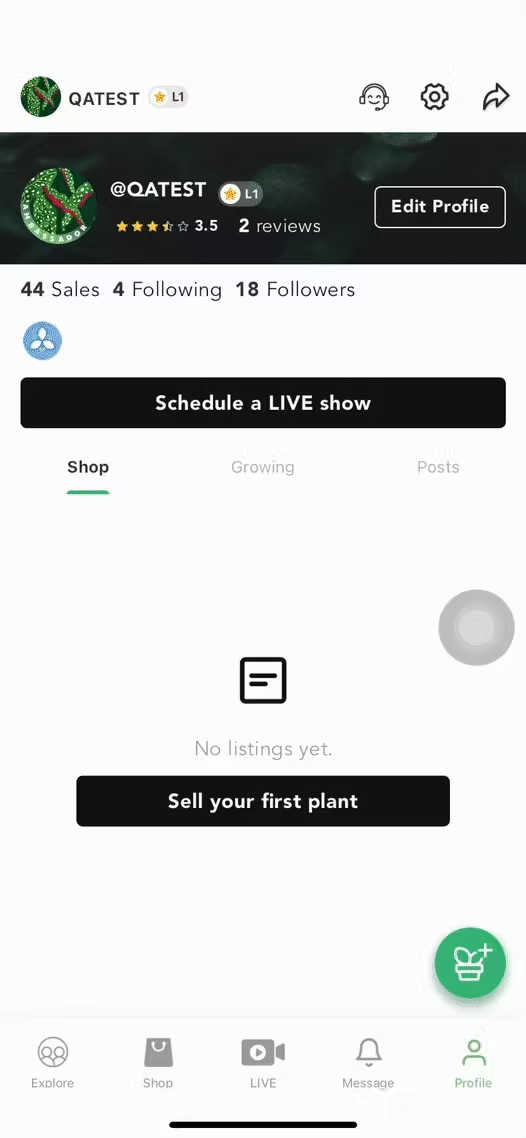
Navigate to Settings from the Profile tab to find the "Manage payment" option. From there you can find your linked cards and delete any card you no longer use.
## FAQs
How to switch from several cards when making payments?
Just select the card you would like to use in the payment info tab in the live show.
Will the refunds go to the old card if making payment with a new card?
Refunds only go to the bank account which made the payment.
How many cards can be linked to my Palmstreet account?
There is no specific limitation for that yet on our platform.