> For the complete documentation index, see [llms.txt](https://help.palmstreet.app/llms.txt). Markdown versions of documentation pages are available by appending `.md` to page URLs; this page is available as [Markdown](https://help.palmstreet.app/seller/palmstreet-shipping-guide/order-fulfillment/how-to-use-create-shipment-to-fulfill-orders.md).
# How to use “Create Shipment” to fulfill orders
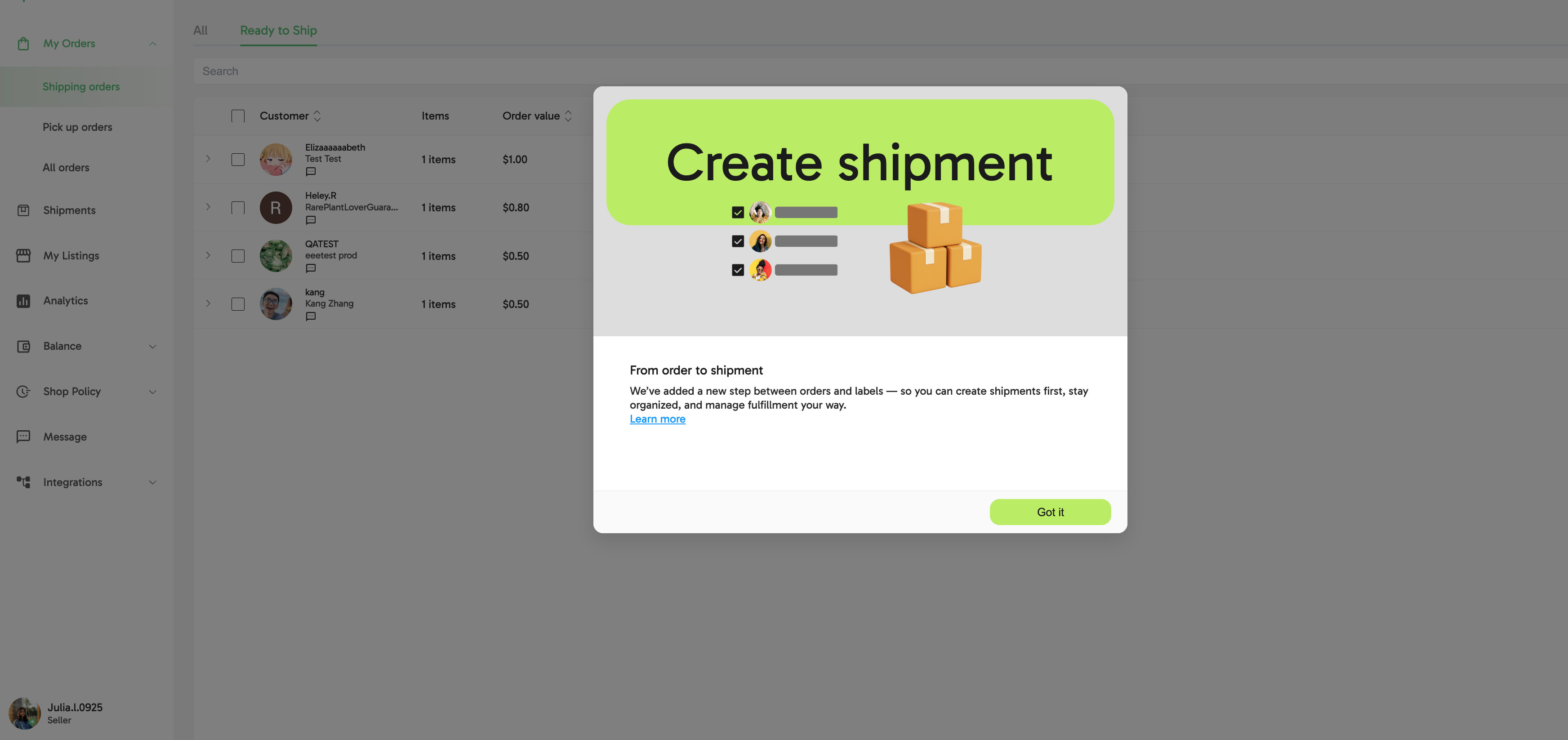
To streamline the order fulfillment process, the **Create Shipment** feature gives sellers greater control over how orders are organized and shipped. Sellers can select which orders to group into a single shipment based on packaging needs, timing, or weight. While a shipment remains fixed once created, sellers can choose how to handle future orders from the same buyer—either by adding them to the existing shipment or starting a new one. This flexibility minimizes repacking, supports accurate cost allocation, and improves overall fulfillment efficiency.
{% hint style="info" %}
#### **Important for ShipStation Users**
If you use **ShipStation** to purchase labels:
* You must **create a shipment on Palmstreet first**
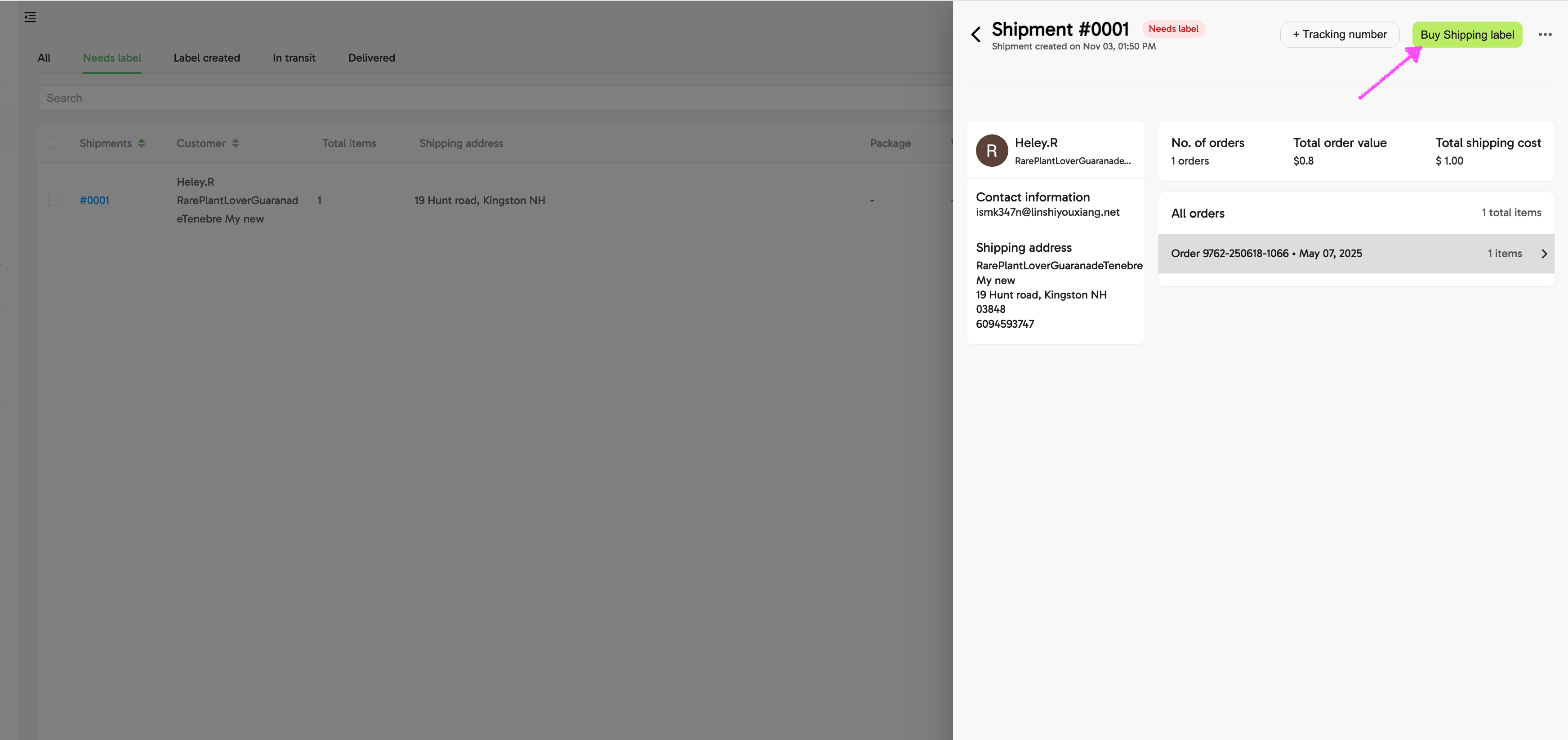
* Then **manually sync it to ShipStation**
If a shipment is not created on Palmstreet, the order may not appear in ShipStation.
**1 Shipment = 1 Label**
* Each **Shipment ID corresponds to one package and one shipping label** in ShipStation.
If you want to ship multiple orders together, combine them into a single shipment before syncing.
{% endhint %}
#### Step 1: Create Shipments from Orders
1. Go to **Orders > Shipping Orders** in your Seller Hub
2. Select one or more orders you want to group into a shipment
*(Note: Orders can come from a single order or multiple orders placed by the same buyer.)*
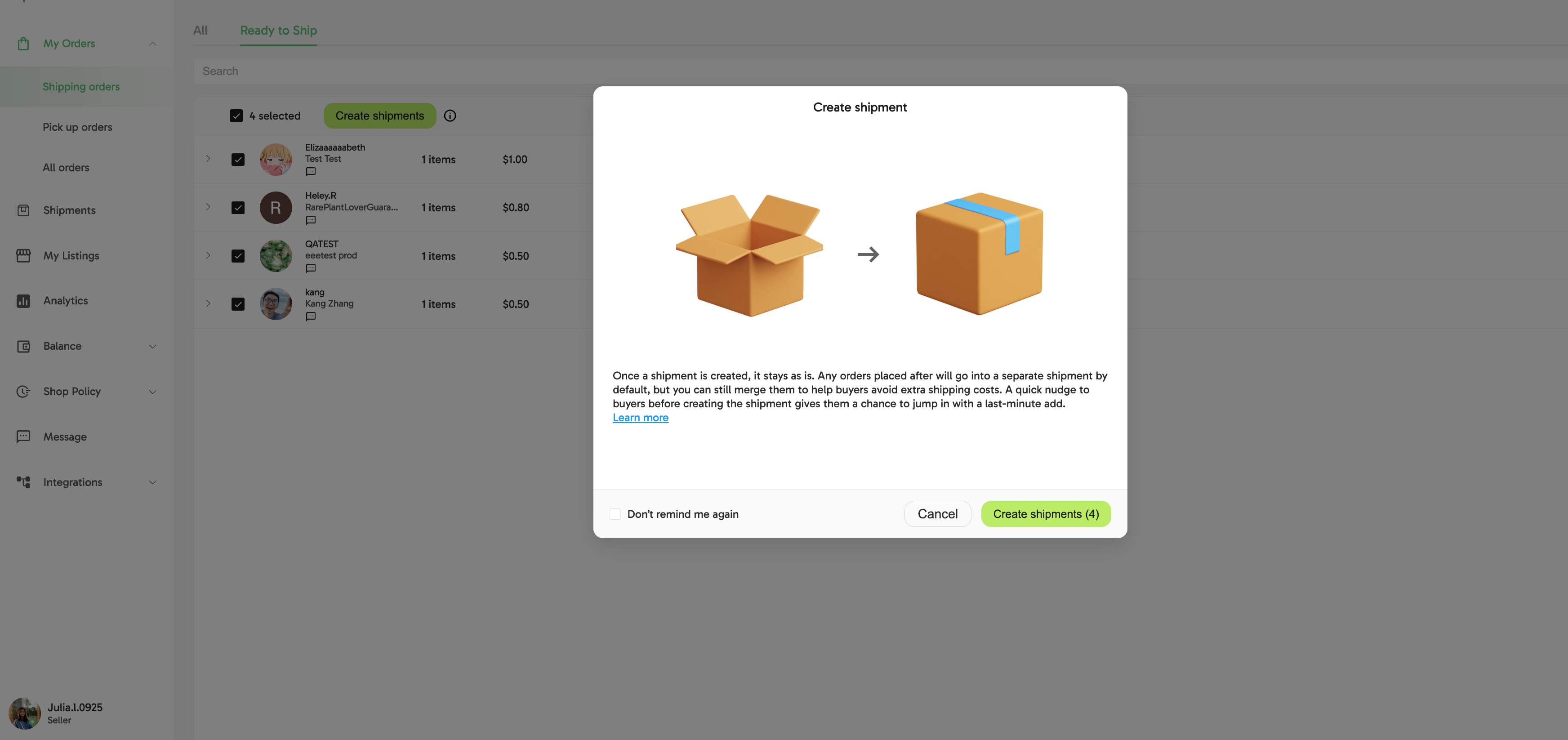
3. Click **Create Shipment** to start a shipment draft
The draft will be saved under **Shipments** and can be reviewed or updated at any time before fulfillment.
4. Review shipment details
Once a shipment is created, you can only add additional orders. All other shipment details will remain fixed.
{% hint style="info" icon="lightbulb" %}
#### **Tip: Use the Date Range filter to avoid selecting old orders**
If you have historical orders that you do not plan to fulfill, we recommend using the **Date Range filter** before selecting orders.
For example, you can filter orders from the **last 90 days** or **last 6 months** to focus only on recent shipments. This helps prevent accidentally including old orders when creating shipments.
{% endhint %}
#### Step 2: Add new orders to existing shipment
When a new order is received after a shipment has been created, the system will:
* Notify you if the new order is eligible to be combined with an existing shipment
* Allow you to manually check for eligible combinations under **Orders > Shipments**
To add new orders to an existing shipment:
1. Go to **Orders > Shipping Orders > Ready to ship**
2. Select the relevant order(s)
3. Click **Combine with Shipment** to start the merging process
4. Choose an existing shipment from the list
5. Click **Combine** to add the selected order(s) to that shipment
### FAQ
Can sellers still print labels the way they used to?
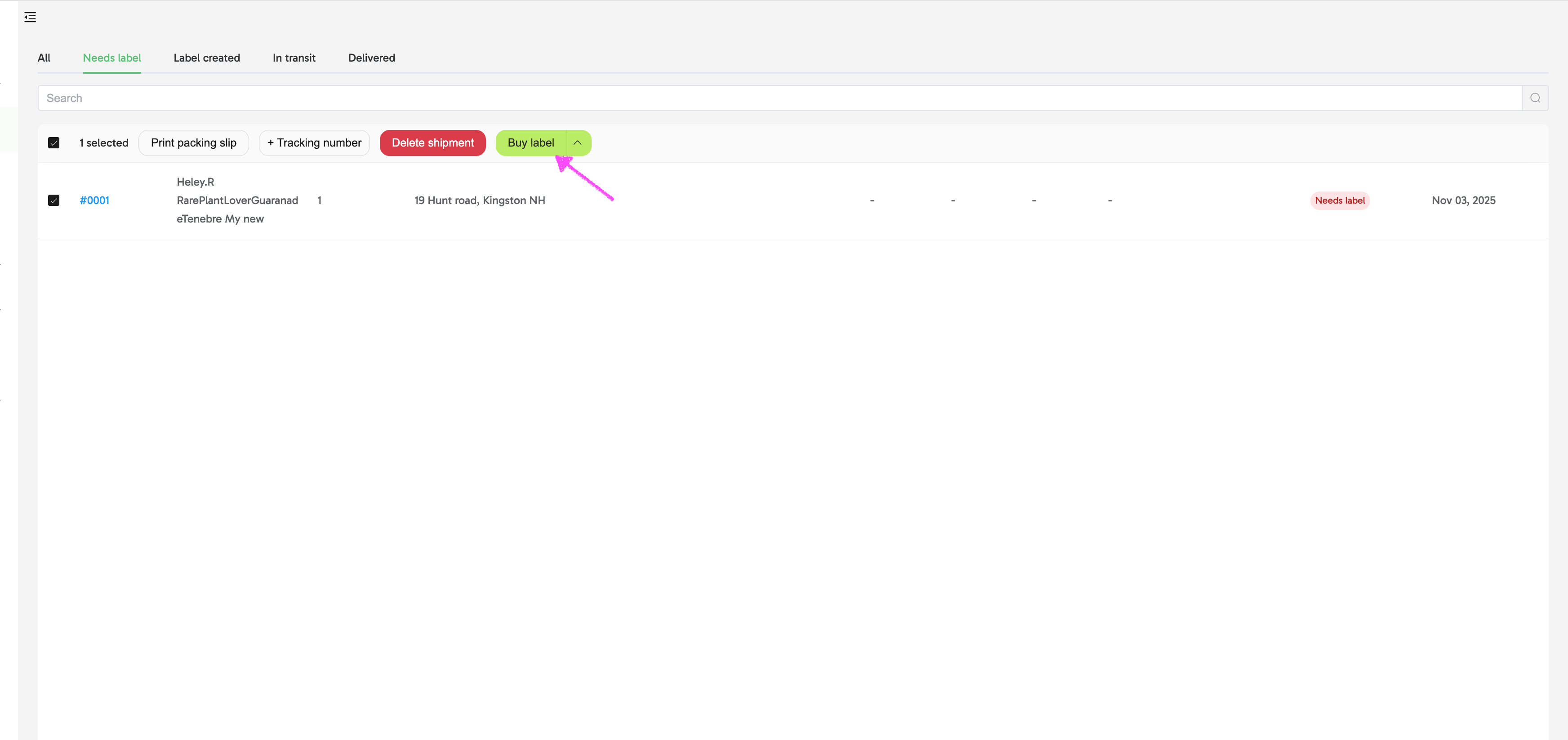
Yep! The label-purchasing process remains the same, but now occurs after creating or updating a shipment. Sellers must first group items into a shipment before accessing the label step.
What if multiple shipments are created for the same buyer?
Multiple shipments can be created for the same buyer if items are fulfilled separately. Shipping fees will apply accordingly unless orders are merged before label purchase.
Is there a limit to how many orders can be merged into one shipment?
There is no fixed limit, but merging is subject to practical constraints such as weight, size, and shipping carrier rules.
Can I reprint a packing slip?
Yes. Go to Shipments > Label Created (or any shipment status where a label has been purchased). Select the shipment and click Print Packing Slip. You can print it again anytime, for example, if you need to repackage or replace the original slip.
Can I reprint a shipping label?
Absolutely. Once a label has been purchased, you can reprint it anytime from Shipments > Label Created by selecting the shipment and clicking Print Shipping Label. This is helpful if the original label was damaged, misplaced, or printed incorrectly.
What happens if a seller forgets to include an order in a shipment?
The seller can create a new shipment for it at any time, or combine it with an existing shipment as long as it has not yet been fulfilled. The system may also surface a prompt if a merge is possible.
Will buyers know if a seller merges shipments?
Buyers won’t be notified when shipments are merged. However, if a refund is issued (e.g., for base shipping), they will receive a refund confirmation and, once the label is purchased, see a single combined tracking link.
Can I update a tracking number after entering it manually?
Yes. If you entered a tracking number manually, you can update it later if necessary. For instance, if the carrier or service changes. Go to Shipments > Label Created, open the shipment detail page, and select Edit Tracking Number to replace or correct it.
**Still need help?**
If your question wasn’t answered here, our Support team is always happy to help. You can also browse the [Help Center](https://help.palmstreet.app/) for more resources and commonly asked questions.